Completed List
Overview
The Completed List page displays all audit assessments where every question across all tabs has been answered. Once all questions are answered in the WIP List, the assessment automatically moves here. From this page, an authorized user can Approve the completed execution, which then moves the audit into Audit Reporting.
Navigate to: Audit > Audit Execution > Completed List
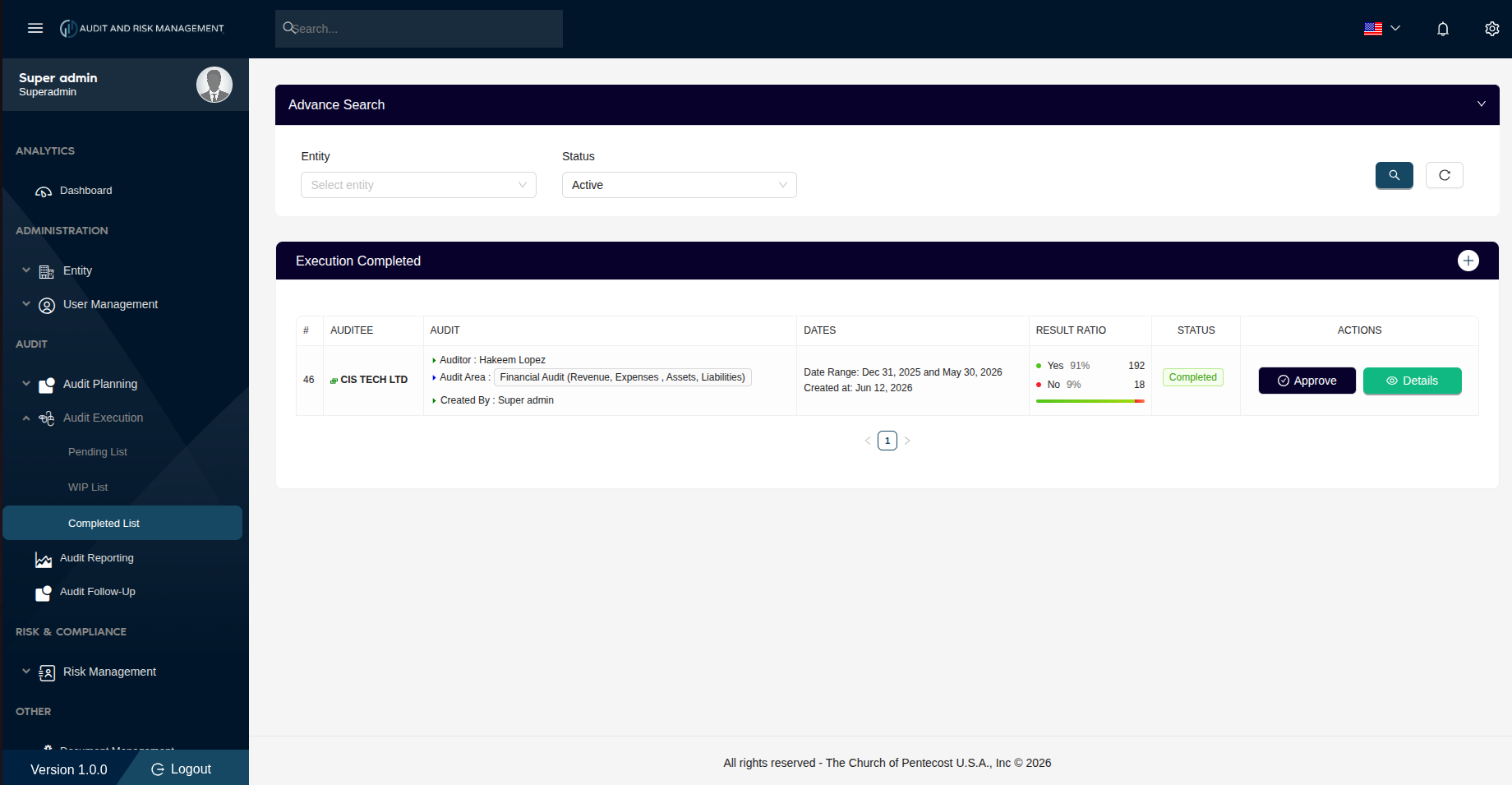
Advanced Search
| Filter Field | Type | Description |
|---|---|---|
| Entity | Dropdown | Filter by the company/entity being audited |
| Status | Dropdown | Filter by status. Default is Active |
!!! tip "Search & Reset" - Click the 🔍 Search button (teal) to apply the filters - Click the ↺ Reset button to clear all filters and reload the full list
Execution Completed Table
| Column | Description |
|---|---|
| # | Notification ID |
| Auditee | The company/entity that was audited |
| Audit | Assigned auditor(s), audit area(s), and the user who created the notification |
| Dates | The audit date range and the date the notification was created |
| Result Ratio | Visual breakdown of Yes % (green) vs No % (red) answers with count, plus a progress bar |
| Status | Always Completed on this list |
| Actions | Approve button — approves the execution / Details button — views the full questionnaire |
Result Ratio
The Result Ratio column shows a summary of the auditor's answers:
| Indicator | Color | Description |
|---|---|---|
| Yes | 🟢 Green | Percentage and count of Yes answers |
| No | 🔴 Red | Percentage and count of No answers |
A colored progress bar visually represents the Yes/No split at a glance.
Actions
✅ Approve
Click Approve to approve the completed execution. This triggers the audit to move into Audit Reporting where the results can be reviewed and reported.
🔍 Details
Click Details to open the full audit questionnaire and review all submitted answers before approving.
!!! warning "Review before approving" Check the Result Ratio and use Details to review all No answers before clicking Approve. Questions answered No will appear in Audit Follow-Up for resolution tracking.
Step-by-Step: How to Approve a Completed Execution
- Go to Audit → Audit Execution → Completed List
- Review the Result Ratio for each assessment
- Optionally click Details to review all submitted answers
- Click Approve to approve the execution
- The assessment moves to Audit Reporting
!!! success "Expected Result" The assessment disappears from the Completed List and appears in Audit Reporting with Completed status. Any questions answered No automatically appear in Audit Follow-Up for resolution.