User List
Overview
The User List page displays all registered users in the system. It provides an Advanced Search panel for filtering users, and a User List table showing each user's company, name, role, credentials, status, and available actions.
Navigate to: Administration > User Management > User Information > User List
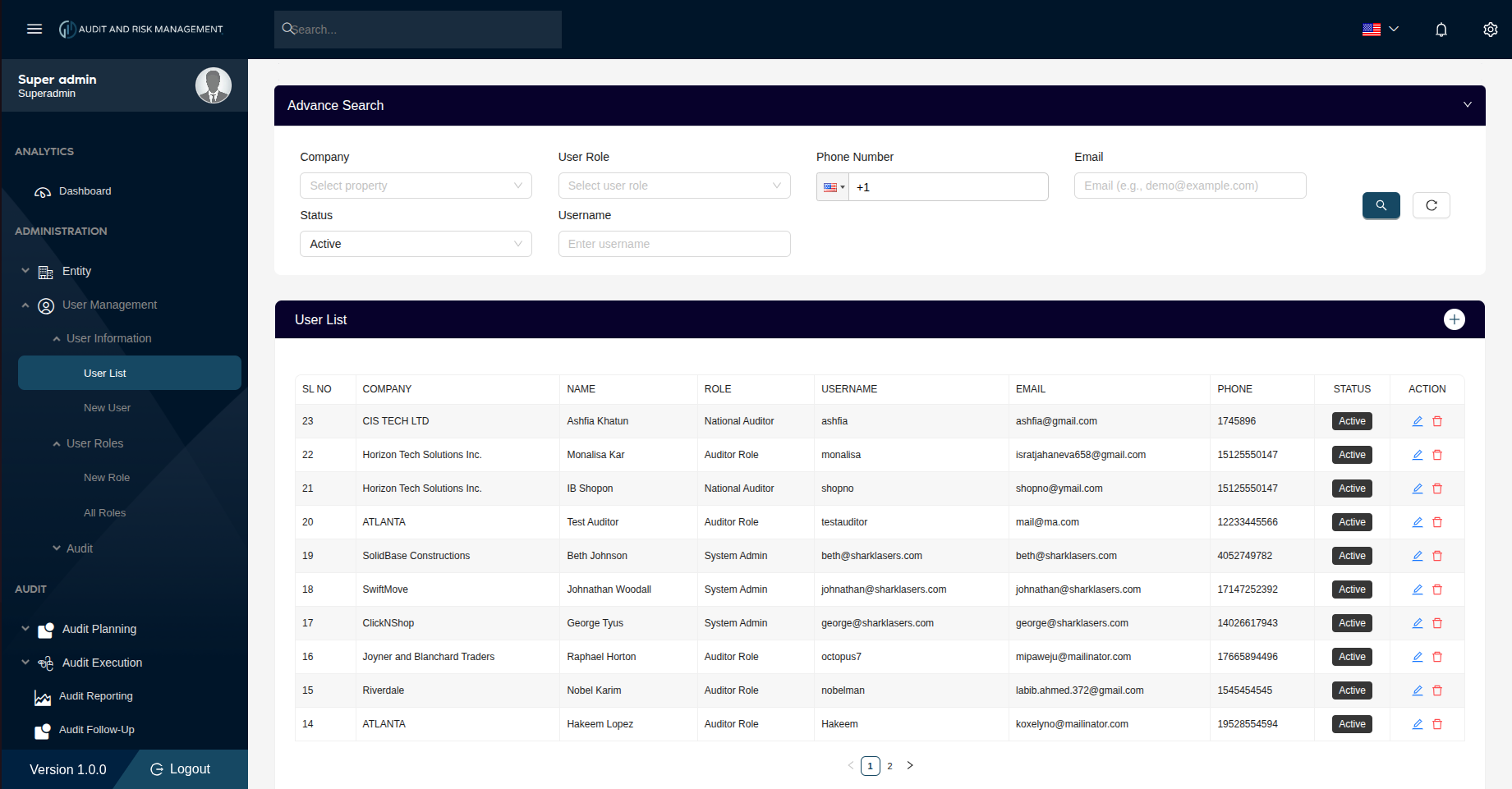
Advanced Search
| Filter Field | Type | Description |
|---|---|---|
| Company | Dropdown | Filter by the company the user belongs to |
| User Role | Dropdown | Filter by the user's assigned role |
| Phone Number | Phone | Search by the user's phone number |
| Text | Search by the user's email address (e.g. demo@example.com) | |
| Status | Dropdown | Filter by status: Active or Inactive. Default is Active |
| Username | Text | Search by the user's username |
!!! tip "Search & Reset" - Click the 🔍 Search button (teal) to apply the filters - Click the ↺ Reset button to clear all filters and reload the full list
User List Table
| Column | Description |
|---|---|
| SL NO | Serial number / row index (sorted in descending order — newest first) |
| Company | The company this user is associated with |
| Name | Full name of the user |
| Role | The user's assigned role (e.g. National Auditor, System Admin, Auditor Role) |
| Username | The user's login username |
| The user's email address | |
| Phone | The user's primary phone number |
| Status | Current status badge — Active (teal) or Inactive (grey) |
| Action | ✏️ Edit — opens the user for editing / 🗑️ Delete — removes the user |
!!! info "Pagination" The user list is paginated. Use the ‹ › navigation arrows or click a page number at the bottom to move between pages.
Actions
➕ Add New User
Click the + button on the top-right of the User List header bar to navigate to the New User form.
✏️ Edit a User
Click the pencil (✏️) icon in the Action column of any row to open that user's record for editing.
🗑️ Delete a User
Click the trash (🗑️) icon in the Action column to delete the user.
!!! warning "Deleting a User" Deleting a user is irreversible. Ensure the user has no active audit assignments or linked records before deletion.
Step-by-Step: How to Search for a User
- Go to Administration → User Management → User Information → User List
- In the Advanced Search panel, enter one or more filter criteria
- e.g. set Status to
Activeand User Role toNational Auditor
- e.g. set Status to
- Click the 🔍 Search button
- The User List table updates to show matching results
- To clear filters and view all users, click the ↺ Reset button
!!! success "Expected Result" The table displays only the users matching the selected filter criteria.