Approve Notification
Overview
The Notification Detail page is the review and approval step in the audit notification workflow. After an auditor submits their responses to the Internal Controls Assessment Questionnaire, an authorized user (e.g. Super Admin) reviews all answers and either approves or rejects the notification.
Navigate to: Audit > Audit Planning > Audit Notification > Notification List > [Select Notification to Approve (Click 'Complete')]
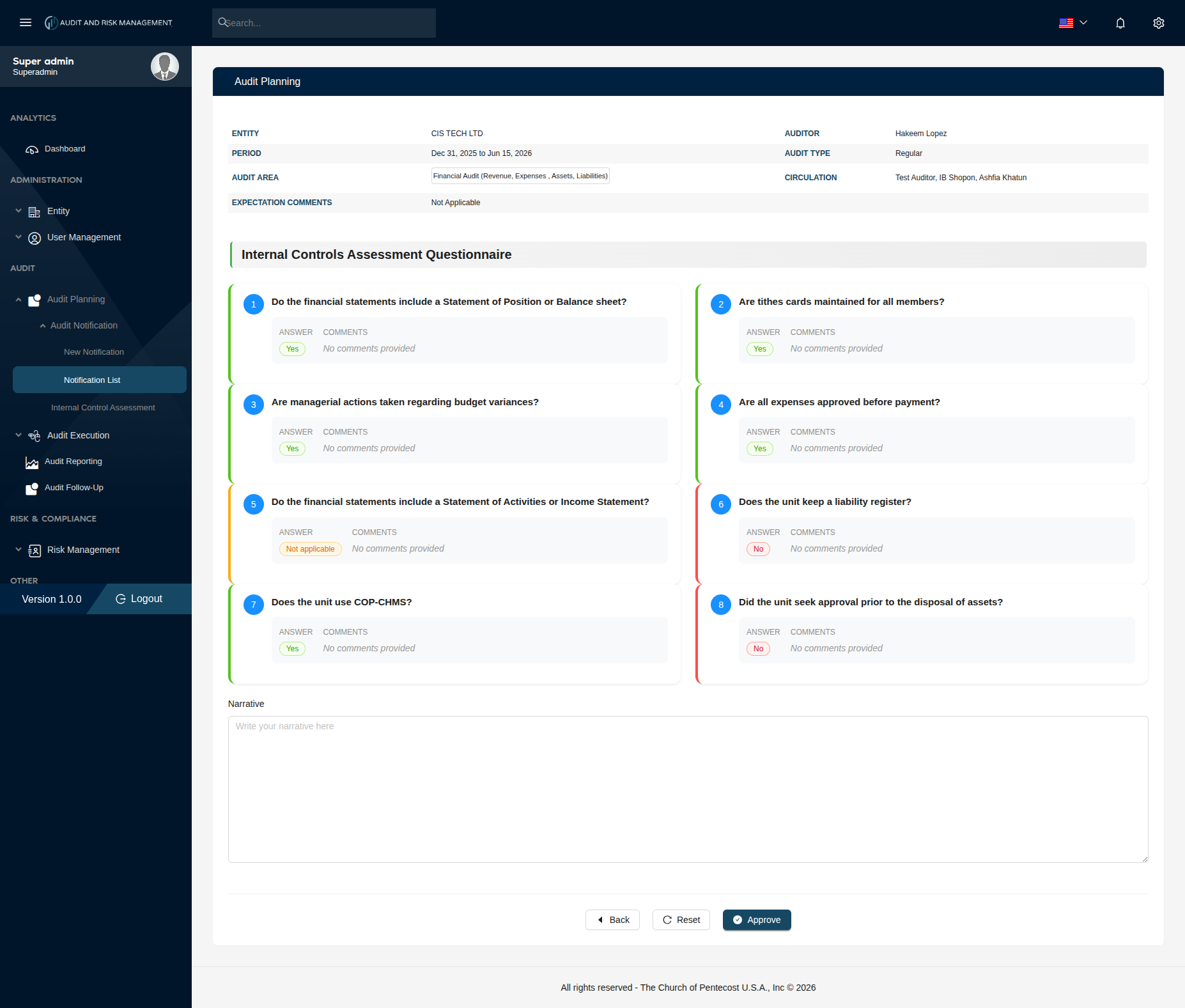
!!! info "Who accesses this page?" This page is accessed by an authorized reviewer (typically the admin or a senior auditor) after the auditor has submitted the questionnaire from the Notification Detail page. The notification status must be Answered before this page becomes actionable.
Audit Summary Panel
The top section displays the audit's key details as read-only fields:
| Field | Description |
|---|---|
| Entity | The company/entity being audited (e.g. CIS TECH LTD) |
| Auditor | The assigned auditor (e.g. Hakeem Lopez) |
| Period | The audit date range (e.g. Dec 31, 2025 to Jun 15, 2026) |
| Audit Type | The type of audit: Clearance, Regular, or Other (e.g. Regular) |
| Audit Area | The scope of the audit (e.g. Financial Audit (Revenue, Expenses, Assets, Liabilities)) |
| Circulation | List of users in circulation (e.g. Test Auditor, IB Shopon, Ashfia Khatun) |
| Expectation Comments | Comments set during notification creation (e.g. Not Applicable) |
Internal Controls Assessment Questionnaire — Response Review
Each question is displayed as a card showing the auditor's submitted response.
Response Card Layout
Each card contains:
| Element | Description |
|---|---|
| # | Question number (blue circle badge) |
| Question | The internal control question text |
| Answer | The auditor's selected response, shown as a color-coded badge |
| Comments | Any comments provided by the auditor (shows No comments provided if left blank) |
Answer Badge Colors
| Answer | Badge Color | Meaning |
|---|---|---|
| Yes | Green | The control is in place / compliant |
| No | Red | The control is not in place / non-compliant |
| Not applicable | Orange | The question does not apply to this entity |
Card Border Colors
Each question card has a left-border color matching the answer for quick visual scanning:
| Border Color | Corresponding Answer |
|---|---|
| 🟢 Green | Yes |
| 🔴 Red | No |
| 🟡 Orange | Not applicable |
Narrative
Below the questionnaire cards, there is a Narrative text field where the reviewer can write an overall summary or observation before approving.
| Field | Type | Required | Description |
|---|---|---|---|
| Narrative | Text | ❌ | Free-text field for the reviewer's overall audit narrative |
Approval Workflow
This page is the final review step before an audit notification is marked as Approved.
Send Notification  →  Auditor Submits Responses  →  Reviewer Reviews Here  →  Approve
   (Pending)               (Answered)                                          (Approved)
Step-by-Step: How to Review and Approve a Notification
- Go to Audit → Audit Planning → Audit Notification → Notification List
- Locate the notification with status Answered
- Click the notification to open the Internal Control Assessment review page
- Review the Audit Summary details at the top
- Go through each question card and check:
- The Answer badge (Green = Yes, Red = No, Orange = Not applicable)
- Any Comments provided by the auditor
- Optionally write a Narrative summarizing the overall assessment
- Click Approve to approve the notification
!!! success "Expected Result" The notification status changes from Answered to Approved in the Notification List. The audit is then ready to be marked as Complete.
!!! warning "Review all responses before approving" Pay special attention to questions answered No (red badge) — these indicate internal control gaps that may require follow-up action before the audit is approved.
!!! tip "Buttons" - Back — Returns to the Notification List without saving - Reset — Clears the Narrative field - Approve — Approves the notification and updates its status to Approved