WIP List
Overview
The WIP (Work In Progress) List displays all audit assessments that have been started but are not yet fully completed. An assessment moves here automatically as soon as at least one question is answered during execution. It stays here until all questions across all tabs are answered.
Navigate to: Audit > Audit Execution > WIP List
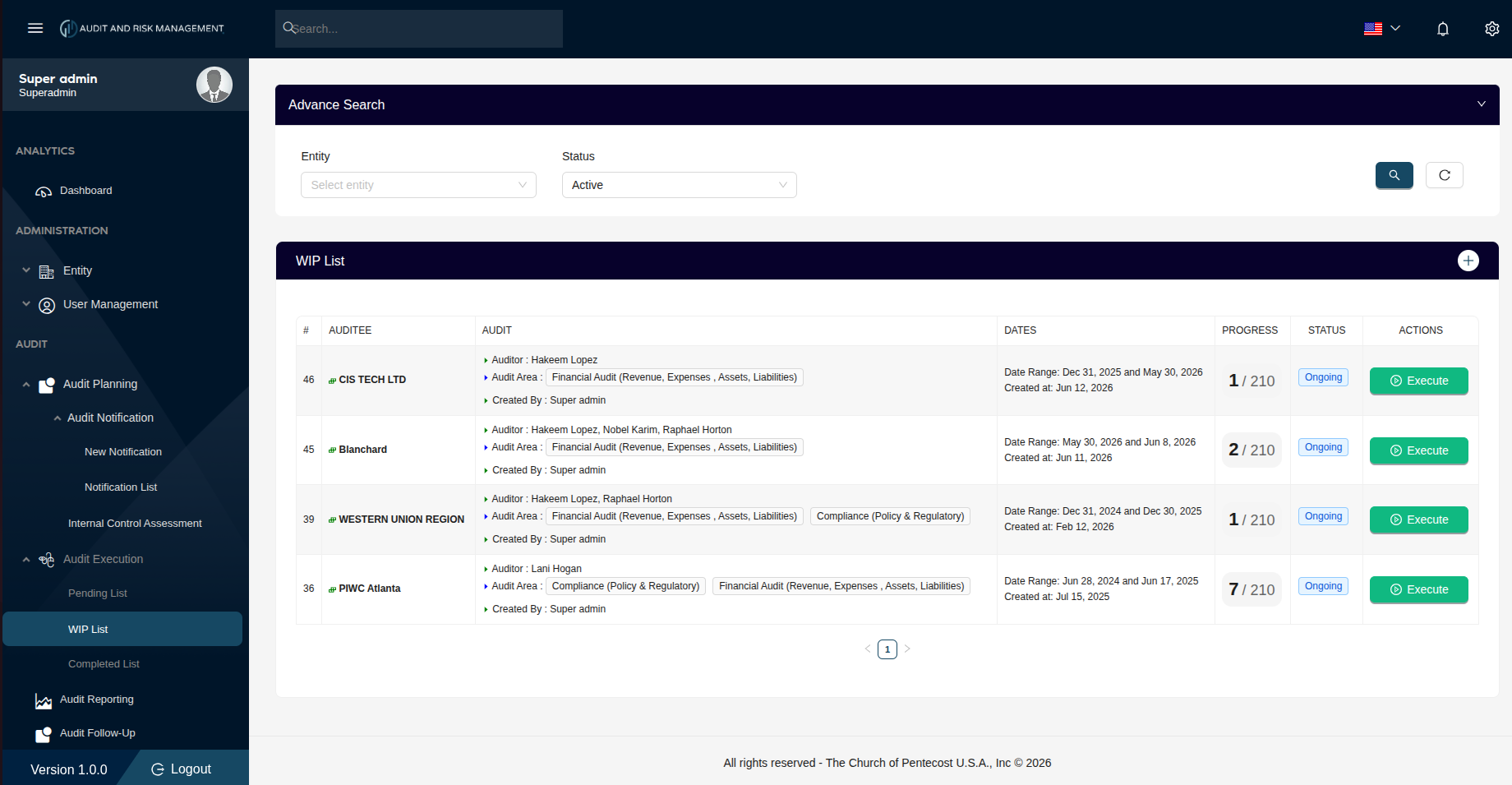
Advanced Search
| Filter Field | Type | Description |
|---|---|---|
| Entity | Dropdown | Filter by the company/entity being audited |
| Status | Dropdown | Filter by status. Default is Active |
!!! tip "Search & Reset" - Click the 🔍 Search button (teal) to apply the filters - Click the ↺ Reset button to clear all filters and reload the full list
WIP List Table
| Column | Description |
|---|---|
| # | Notification ID (sorted in descending order — newest first) |
| Auditee | The company/entity being audited, with a colored indicator icon |
| Audit | Assigned auditor(s), audit area(s), and the user who created the notification |
| Dates | The audit date range and the date the notification was created |
| Progress | Shows how many questions have been answered out of the total (e.g. 1 / 210, 7 / 210) |
| Status | Always Ongoing on this list |
| Actions | Execute button — reopens the audit questionnaire to continue answering |
Progress Column
The Progress column shows a real-time count of answered questions:
[Answered] / [Total Questions]

Example:  1 / 210  →  1 question answered out of 210 total
          7 / 210  →  7 questions answered out of 210 total
!!! info "Total Questions" The total question count (e.g. 210) covers all questions across all tabs (FTR, BAM, CH, TFM, EA, BC, AM, PVS, FRR) for the audit.
Actions
▶ Execute
Click the Execute button to reopen the Audit Execution page and continue answering remaining questions. Progress from previous sessions is retained — already-answered questions show their saved responses.
Step-by-Step: How to Continue an Audit from the WIP List
- Go to Audit → Audit Execution → WIP List
- Locate the assessment by Auditee or # ID
- Check the Progress column to see how many questions remain
- Click Execute to reopen the questionnaire
- Continue answering remaining questions across all tabs
- Once all questions are answered, the assessment moves to the Completed List
!!! success "Expected Result" As more questions are answered, the Progress counter increments (e.g. 7 / 210 → 8 / 210). When all questions are answered, the assessment automatically moves to the Completed List.
!!! info "Audit Execution Lifecycle"
```
Pending List  →  (Execute clicked)  →  WIP List  →  (All questions answered)  →  Completed List
   Pending                              Ongoing                                     Completed
```