Company List
Overview
The Company List page displays all registered companies in the system. It provides an Advanced Search panel for filtering, and a Company List table showing each company's details, status, and available actions.
Navigate to: Administration > Entity > Company Information > Company List
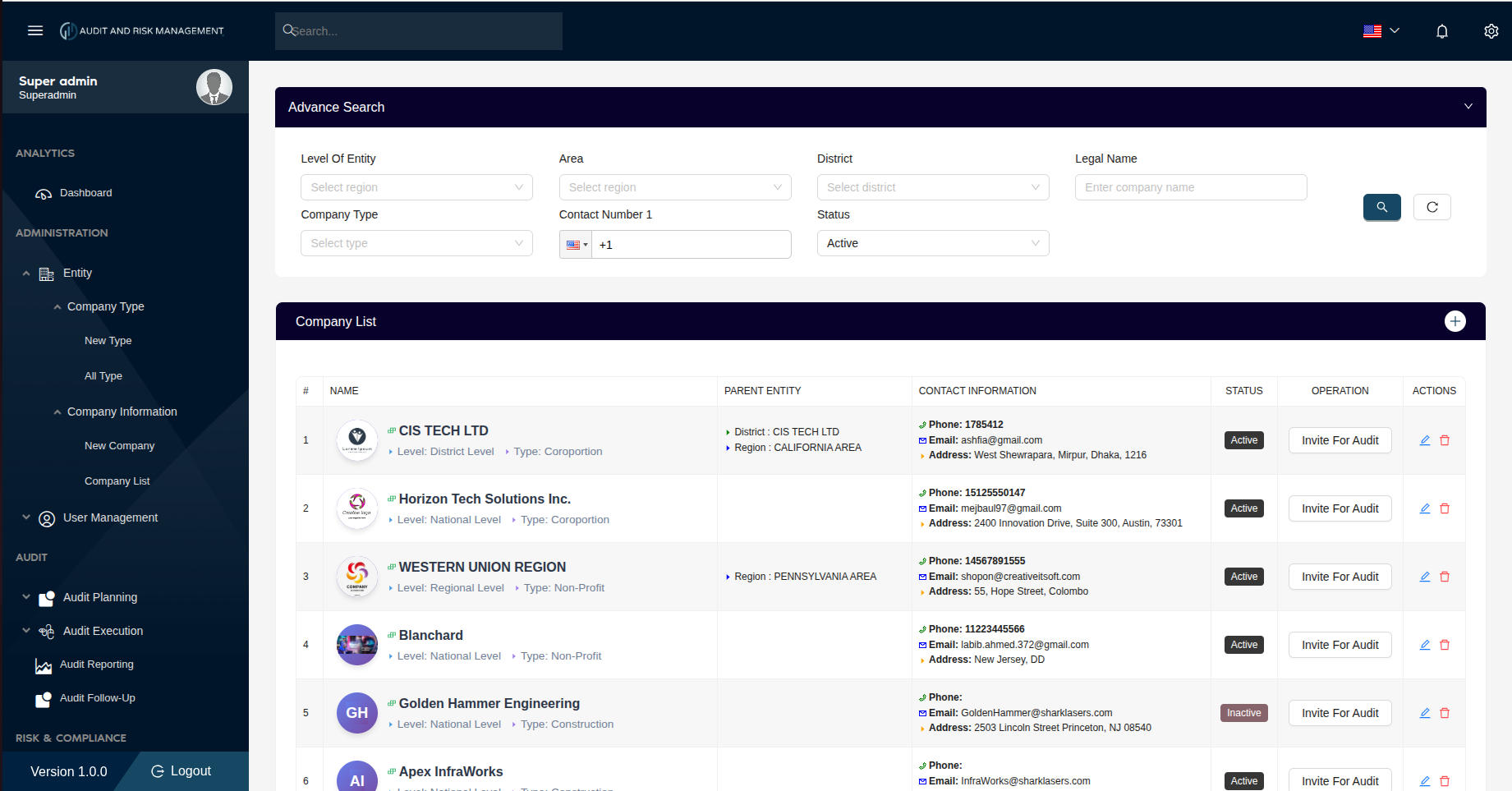
Advanced Search
The search panel at the top allows filtering the company list by one or more criteria.
| Filter Field | Type | Description |
|---|---|---|
| Level of Entity | Dropdown | Filter by hierarchy level: National, Regional, District, or Local Assembly |
| Area | Dropdown | Filter by area (region) |
| District | Dropdown | Filter by district |
| Legal Name | Text | Search by the company's legal name |
| Company Type | Dropdown | Filter by company type (e.g. Corporation, Non-Profit, Construction) |
| Contact Number 1 | Phone | Search by primary contact number |
| Status | Dropdown | Filter by status: Active or Inactive. Default filter is Active |
!!! tip "Search & Reset" - Click the 🔍 Search button (teal) to apply the filters - Click the ↺ Reset button to clear all filters and reload the full list
Company List Table
Each row in the table represents a registered company with the following columns:
| Column | Description |
|---|---|
| # | Row index number |
| Name | Company logo (if uploaded), company name, hierarchy level, and company type |
| Parent Entity | Shows the parent District and/or Region this company belongs to (if applicable) |
| Contact Information | Primary phone number, email address, and physical address |
| Status | Current status badge — Active (teal) or Inactive (grey) |
| Operation | Invite For Audit button — initiates an audit invitation for that company |
| Actions | ✏️ Edit — opens the company form for editing / 🗑️ Delete — removes the company |
!!! info "Name Column Details" Each company row in the Name column shows:
- Company **logo** or auto-generated **initials avatar** (if no logo uploaded)
- **Company Name** (in bold/colored text)
- **Level** tag (e.g. *Level: National Level*)
- **Type** tag (e.g. *Type: Corporation*)
!!! info "Parent Entity Column" This column shows the hierarchical parent(s) of the company:
- **District** level companies show their District and Region
- **Regional** level companies show their Region
- **National** level companies show no parent entity
Actions
➕ Add New Company
Click the + button on the top-right of the Company List header bar to navigate to the New Company form.
✏️ Edit a Company
Click the pencil (✏️) icon in the Actions column of any row to open that company's record for editing.
🗑️ Delete a Company
Click the trash (🗑️) icon in the Actions column to delete the company record.
!!! warning "Deleting a Company" Deleting a company is irreversible. Ensure the company has no active audits or linked records before deletion.
📋 Invite For Audit
Click the Invite For Audit button in the Operation column to send an audit invitation to that company.
Step-by-Step: How to Search for a Company
- Go to Administration → Entity → Company Information → Company List
- In the Advanced Search panel, enter one or more filter criteria
- e.g. set Status to
Activeand Company Type toCorporation
- e.g. set Status to
- Click the 🔍 Search button
- The Company List table updates to show matching results
- To clear filters and view all companies, click the ↺ Reset button
!!! success "Expected Result" The table displays only the companies matching the selected filter criteria.