New Role
Overview
The New Role form is used to create a new user role in the system. Each role defines a User Position, a Role Name, and a set of Permissions that control which modules the role can access.
Navigate to: Administration > User Management > User Roles > New Role
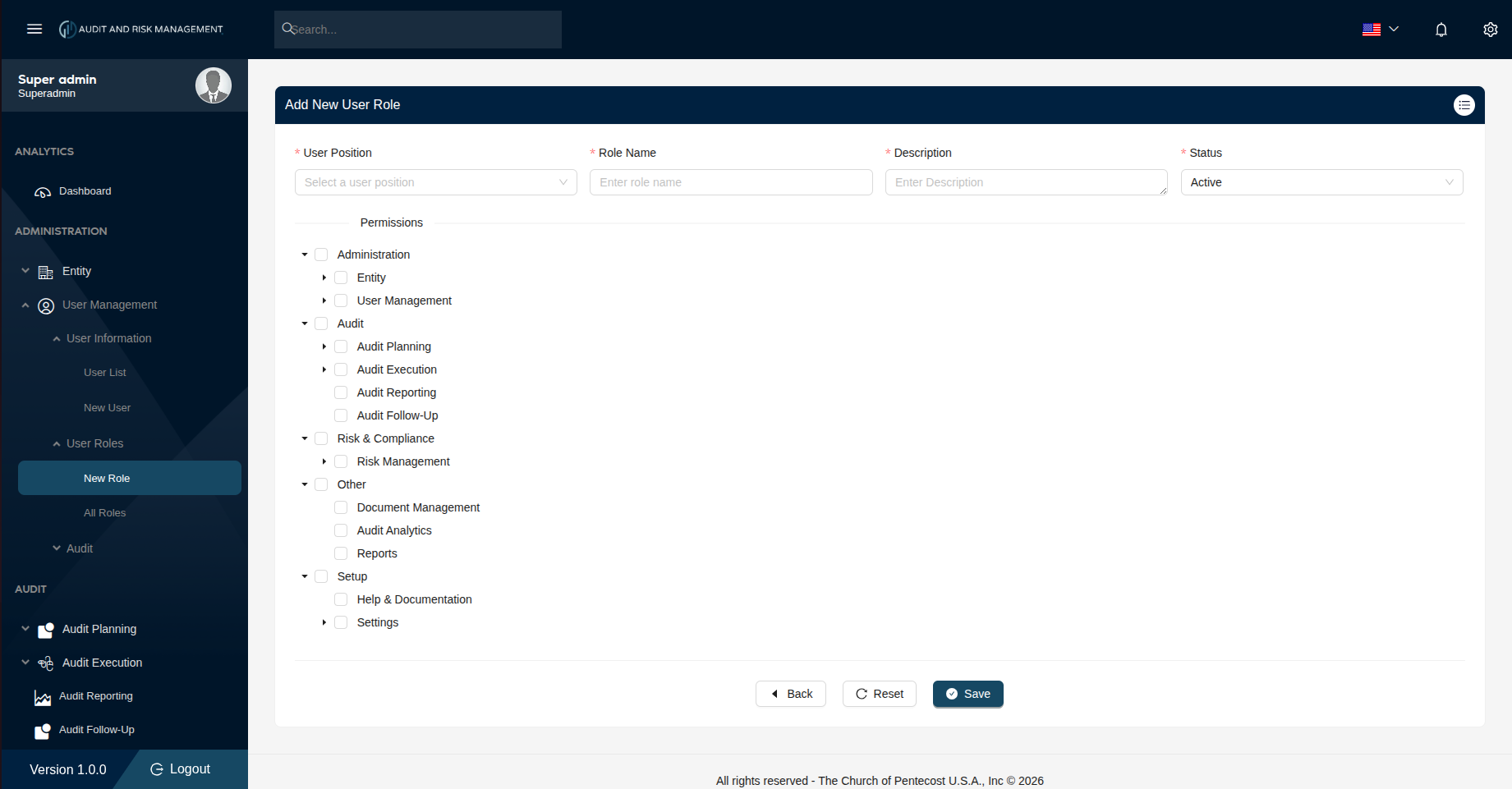
Form Fields
| Field | Type | Required | Description |
|---|---|---|---|
| User Position | Dropdown | ✅ | Select a pre-defined user position (see full list below) |
| Role Name | Text | ✅ | Enter a unique name for this role (e.g. National Auditor, System Admin) |
| Description | Text | ✅ | A brief description of the role's purpose |
| Status | Dropdown | ✅ | Set the status. Default is Active |
User Positions
The User Position dropdown is populated from the EMS system. Available positions are grouped by grade level:
| Administrative Level | Position Name |
|---|---|
| Central | President |
| Central | Central Accountant |
| Central | Central Administrator |
| Central | Central Student Coordinator |
| Nation | National Head |
| Nation | National Deacon |
| Nation | National Secretary |
| Nation | National Accountant |
| Nation | National Auditor |
| Nation | Financial and Administration Director (FAD) |
| Nation | HR |
| Nation | Other Admin |
| Nation | Youth Director |
| Nation | National Admin Entities |
| Nation | PEMEM Director |
| Nation | Women Director |
| Nation | Evangelism Director |
| Nation | National IT Admin |
| Nation | Prophet |
| Nation | Evangelist |
| Nation | PBS Administrator |
| Nation | Logistic Officer / Support |
| Nation | Administrative Secretary |
| Nation | Evangelism Deputy Director |
| Nation | Youth & Pensa Director |
| Nation | Youth & Pensa Deputy Director |
| Nation | Human Resource Administrator |
| Nation | IT Director |
| Nation | IT Administrator |
| Nation | PBS President |
| Nation | PBS Student Services Coordinator |
| Nation | PBS Account Administrator |
| Nation | NAM |
| Nation | NFM |
| Nation | National Audit |
| Region | Regional Head |
| Region | RAAM |
| Region | Regional Deacon |
| Region | Regional Secretary |
| Region | Regional Administrator |
| Region | Regional Auditor |
| Region | Apostle |
| Region | Regiional Audit |
| District | District Pastor |
| District | District Financial Secretary |
| District | District Admin |
| District | District Secretary |
| District | District Treasurer |
| District | District Auditor |
| District | Prob. Overseer |
| District | Overseer |
| District | P/Overseer |
| District | Evangelist |
| District | Prophet |
| District | District Audit |
| Local | Presiding Elder |
| Local | Local Financial Secretary |
| Local | Local Treasurer |
| Local | Entry user |
| Local | Local Secretary |
| Local | Local Administrator |
| Local | Local Auditor |
Permissions
The Permissions section is a hierarchical tree of modules. Check the boxes to grant access to specific modules or sub-modules for this role.
Each top-level group can be expanded (▶) to reveal sub-modules. Checking a parent checkbox selects all its children.
Permission Groups
| Category | Module | Description |
|---|---|---|
| Administration | Entity | Access to company entity management |
| Administration | User Management | Access to user accounts and roles |
| Audit | Audit Planning | Access to audit planning sub-modules |
| Audit | Audit Execution | Access to audit execution sub-modules |
| Audit | Audit Reporting | Access to audit reporting |
| Audit | Audit Follow-Up | Access to audit follow-up actions |
| Risk & Compliance | Risk Management | Access to risk management sub-modules |
| Other | Document Management | Access to document management |
| Other | Audit Analytics | Access to audit analytics dashboards |
| Other | Reports | Access to system reports |
| Setup | Help & Documentation | Access to help and documentation pages |
| Setup | Settings | Access to system settings sub-modules |
!!! info "Expandable Sub-modules" Modules marked with a ▶ arrow (Audit Planning, Audit Execution, Risk Management, Settings) contain further sub-module checkboxes. Click the arrow to expand and configure granular permissions.
!!! warning "Permissions define access" A user assigned this role will only be able to see and interact with the modules checked here. Unchecked modules will be hidden from that user's navigation menu.
Step-by-Step: How to Create a New Role
- Go to Administration → User Management → User Roles → New Role
- Select a User Position from the dropdown
- Enter a Role Name (e.g. National Auditor)
- Enter a Description for the role
- Set Status to
Active(default) orInactive - Under Permissions, check the modules this role should have access to
- Click ▶ to expand a group and configure sub-module permissions
- Check the parent checkbox to select all sub-modules at once
- Click Save to create the role
!!! success "Expected Result" The new role appears in Administration → User Management → User Roles → All Roles and becomes available in the User Role dropdown when creating a new user.
!!! tip "Buttons" - Back — Returns to the previous page without saving - Reset — Clears all fields and unchecks all permissions - Save — Submits and creates the role