New Company
Overview
The New Company form is used to register a new company (entity) in the system. It is divided into four sections: Location Information, Company Information, Primary Contact Information, and Company Address.
Navigate to: Administration > Entity > Company Information > New Company
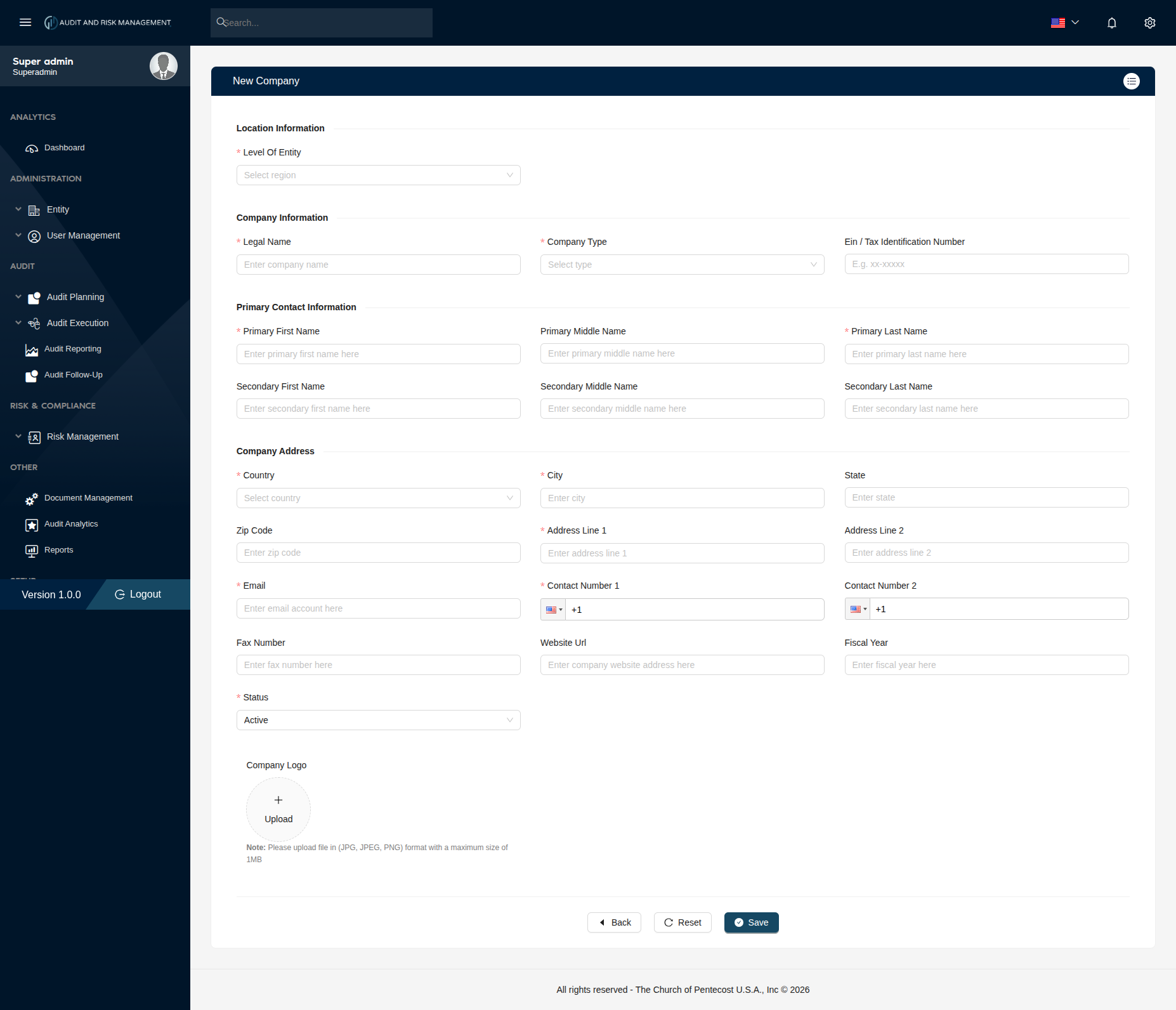
Section 1 — Location Information
| Field | Type | Required | Description |
|---|---|---|---|
| Level of Entity | Dropdown | ✅ | Select the hierarchical level of this company: National, Regional, District, or Local Assembly |
| Area | Dropdown | ✅ | Appears only when District or Local Assembly is selected |
| District | Dropdown | ✅ | Appears only when Local Assembly is selected |
!!! info "Conditional Fields" The Area and District dropdowns appear dynamically based on the selected Level of Entity:
- **National** → No additional fields
- **Regional** → No additional fields
- **District** → **Area** dropdown appears
- **Local Assembly** → Both **Area** and **District** dropdowns appear

Make sure the parent levels (Region, District, Area) are already configured before creating lower-level entities.
Section 2 — Company Information
| Field | Type | Required | Description |
|---|---|---|---|
| Legal Name | Text | ✅ | The official registered name of the company (e.g. Grace Community Church) |
| Company Type | Dropdown | ✅ | Select from pre-configured types. Managed under Entity > Company Type > New Type |
| EIN / Tax Identification Number | Text | ❌ | Enter the tax ID if applicable (e.g. xx-xxxxx) |
!!! info "Where does Company Type come from?" Company Types are pre-configured by the admin under Entity → Company Type → New Type. Each type requires a Type Name, Description, and Status.
Make sure the required company types are added before creating a company.
Section 3 — Primary Contact Information
| Field | Type | Required | Description |
|---|---|---|---|
| Primary First Name | Text | ✅ | First name of the primary contact person |
| Primary Middle Name | Text | ❌ | Middle name of the primary contact person |
| Primary Last Name | Text | ✅ | Last name of the primary contact person |
| Secondary First Name | Text | ❌ | First name of an optional secondary contact person |
| Secondary Middle Name | Text | ❌ | Middle name of the secondary contact person |
| Secondary Last Name | Text | ❌ | Last name of the secondary contact person |
Section 4 — Company Address
| Field | Type | Required | Description |
|---|---|---|---|
| Country | Dropdown | ✅ | Select the country of the company |
| City | Text | ✅ | Enter the city |
| State | Text | ❌ | Enter the state or province |
| Zip Code | Text | ❌ | Enter the postal/zip code |
| Address Line 1 | Text | ✅ | Primary street address |
| Address Line 2 | Text | ❌ | Suite, floor, building, etc. |
| Text | ✅ | Company email address | |
| Contact Number 1 | Phone | ✅ | Primary phone number (with country code) |
| Contact Number 2 | Phone | ❌ | Secondary phone number (with country code) |
| Fax Number | Text | ❌ | Company fax number if applicable |
| Website URL | Text | ❌ | Company website (e.g. https://www.example.com) |
| Fiscal Year | Text | ❌ | The company's fiscal year (e.g. 2026) |
| Status | Dropdown | ✅ | Current status of the company. Default is Active |
| Company Logo | File | ❌ | Upload a logo in JPG, JPEG, or PNG format. Max size: 1MB |
!!! warning "Company Logo Format" Only JPG, JPEG, and PNG formats are accepted for the company logo. The file size must not exceed 1MB.
Step-by-Step: How to Create a New Company
- Go to Administration → Entity → New Company
- Under Location Information, select the Level of Entity
- If District → also select Area
- If Local Assembly → also select Area and District
- Under Company Information, enter the Legal Name
- Select the Company Type from the dropdown
- Optionally enter the EIN / Tax Identification Number
- Under Primary Contact Information, fill in at least the Primary First Name and Primary Last Name
- Under Company Address, select the Country and fill in City, Address Line 1
- Enter the Email and Contact Number 1
- Set Status to
Active(default) or appropriate value - Optionally upload a Company Logo (JPG/JPEG/PNG, max 1MB)
- Click Save to register the company
!!! success "Expected Result" The company appears in Administration > Entity > Company Information > Company List with the selected status (Active by default).
!!! tip "Buttons" - Back — Returns to the previous page without saving - Reset — Clears all filled fields back to default - Save — Submits and creates the company record