Notification List
Overview
The Notification List page displays all audit notifications (invitations) sent to companies. It provides an Advanced Search panel for filtering, and an All Notification table showing each notification's auditee, audit details, dates, status, and available actions.
Navigate to: Audit > Audit Planning > Audit Notification > Notification List
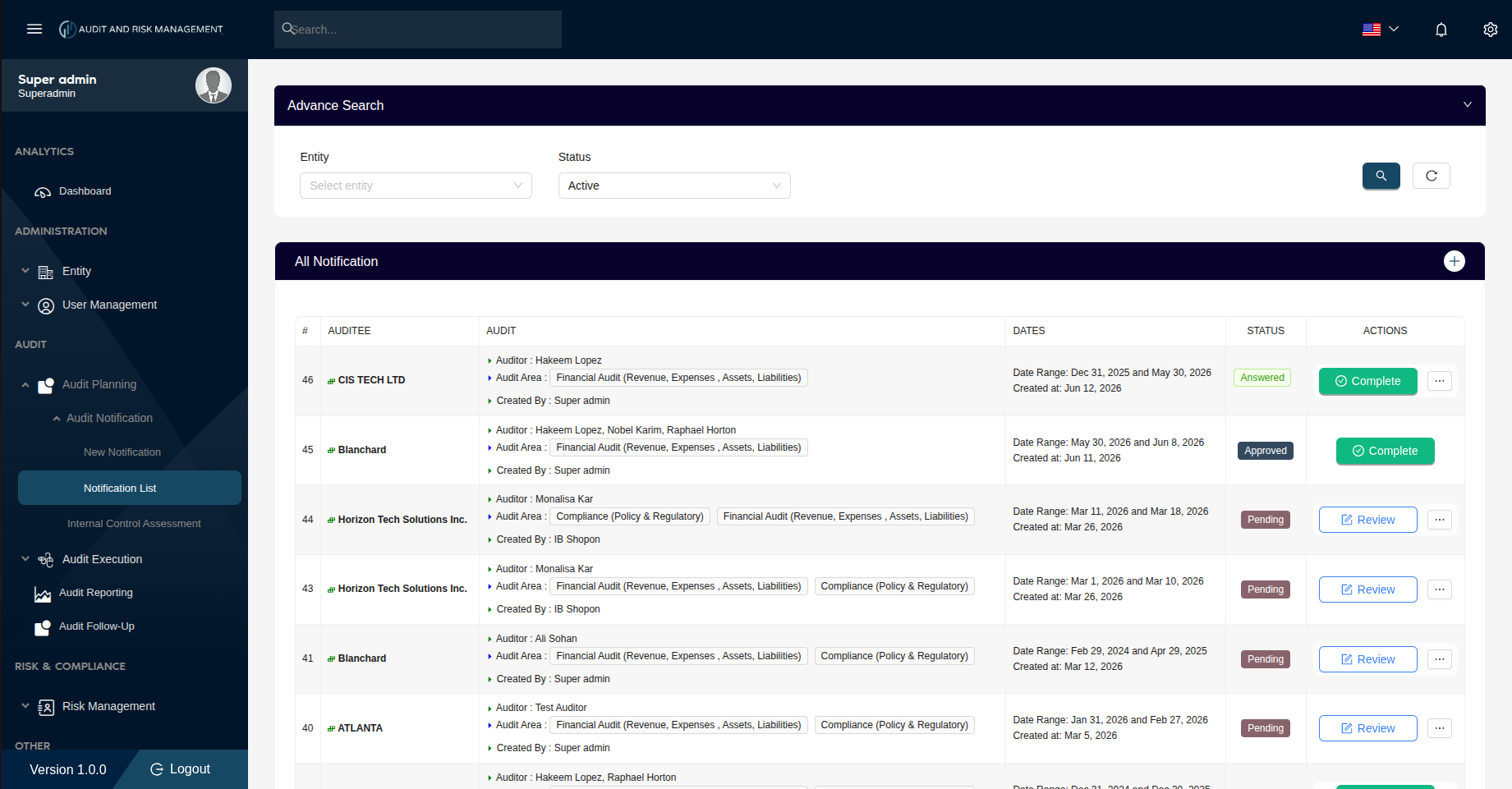
Advanced Search
| Filter Field | Type | Description |
|---|---|---|
| Entity | Dropdown | Filter notifications by the company/entity being audited |
| Status | Dropdown | Filter by notification status. Default is Active |
!!! tip "Search & Reset" - Click the 🔍 Search button (teal) to apply the filters - Click the ↺ Reset button to clear all filters and reload the full list
All Notification Table
| Column | Description |
|---|---|
| # | Notification ID / row index (sorted in descending order — newest first) |
| Auditee | The company/entity being audited, with a colored indicator icon |
| Audit | Assigned auditor(s), audit area(s), and the user who created the notification |
| Dates | The audit date range and the date the notification was created |
| Status | Current status badge (see status types below) |
| Actions | Action buttons available based on the current status (see actions below) |
Notification Statuses
| Status | Badge Color | Description |
|---|---|---|
| Pending | Brown/Orange | The notification has been sent but the auditor has not yet submitted a response |
| Answered | Teal | The auditor has submitted the Internal Controls Assessment Questionnaire |
| Approved | Dark Navy | The notification/audit has been reviewed and approved |
Audit Column Details
Each row in the Audit column shows:
- Auditor — The assigned auditor(s) for this notification
- Audit Area — The scope tags (e.g. Financial Audit (Revenue, Expenses, Assets, Liabilities), Compliance (Policy & Regulatory))
- Created By — The admin user who sent the notification
Actions
Available action buttons vary by notification status:
| Status | Available Actions |
|---|---|
| Pending | Review — Open the notification detail to review or follow up |
| Answered | Complete — Mark the audit as complete / ⋯ More options |
| Approved | Complete — Mark the audit as complete / ⋯ More options |
➕ Add New Notification
Click the + button on the top-right of the All Notification header bar to navigate to the Send New Notification form.
📋 Review
Click the Review button on a Pending notification to open the Notification Detail page and review the audit questionnaire responses.
✅ Complete
Click the Complete button on an Answered or Approved notification to mark the audit as fully completed.
⋯ More Options
Click the ⋯ button for edit and delete actions available on a notification.
Step-by-Step: How to Review a Notification
- Go to Audit → Audit Planning → Audit Notification → Notification List
- Use the Advanced Search panel to filter if needed
- Locate the notification by Auditee name or # ID
- Check the Status badge:
- Pending → Click Review to open and assess the questionnaire
- Answered → Click Complete to finalize the audit
- Approved → Click Complete to mark as done
- Click the row or action button to proceed
!!! success "Expected Result" Clicking Review opens the Notification Detail page with the full audit questionnaire for assessment. Clicking Complete marks the audit record as finished.
!!! info "Notification Flow" The typical lifecycle of a notification is:
**Pending** → *(auditor submits questionnaire)* → **Answered** → *(admin reviews)* → **Approved** → *(admin completes)* → **Complete**